Step 1: Choose the kind of story
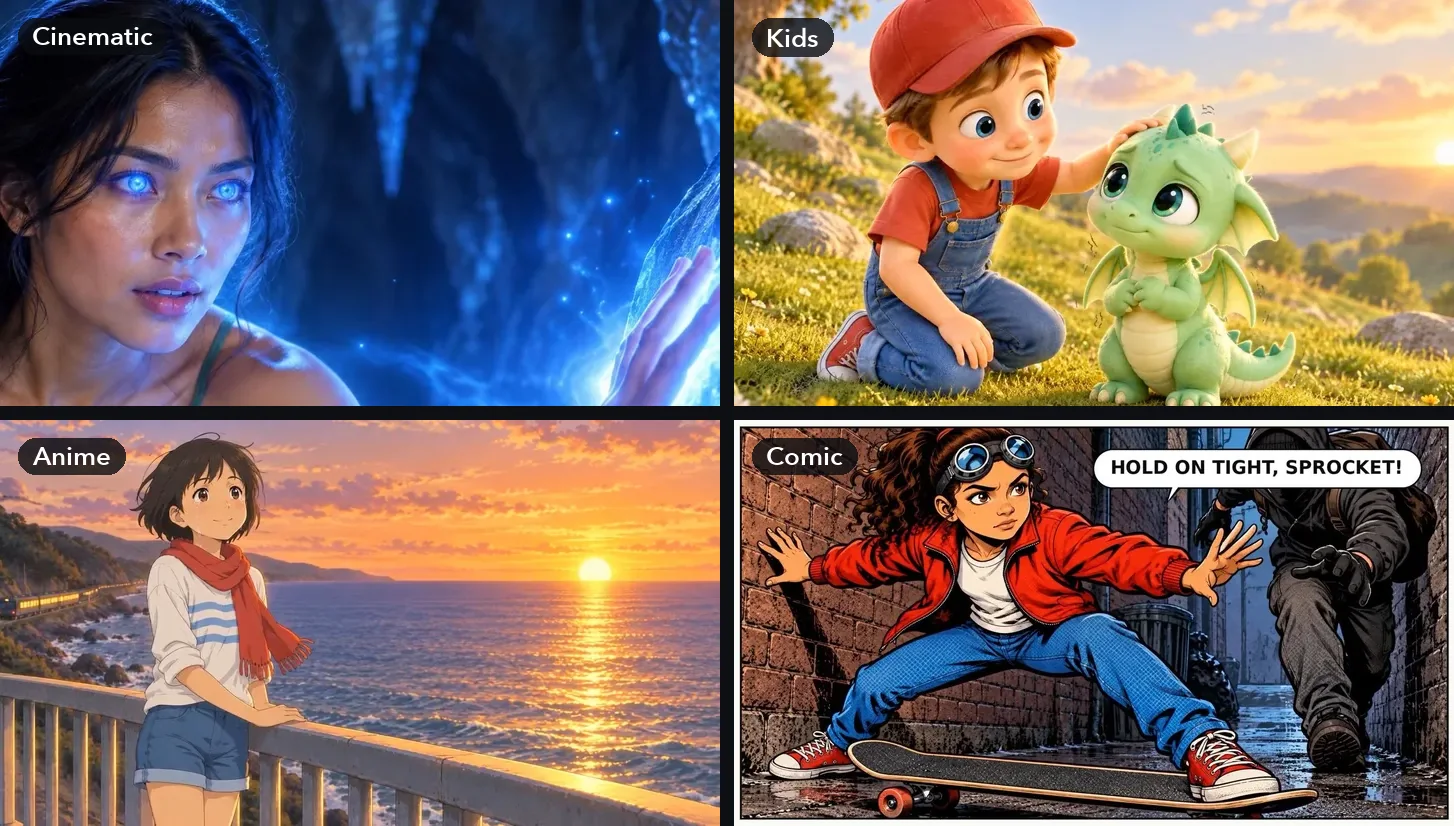
Open Storyboard Video and pick one of four kinds. The kind sets the look of every picture and the way the story is told:
- Cinematic: film-like pictures, moving shots and a narrator.
- Kids: a 3D cartoon look, gentle stories with a happy ending.
- Anime: a hand-drawn anime look, big feelings and bold moments.
- Comic: comic panels with speech bubbles. It uses no AI clips, so it costs the least.
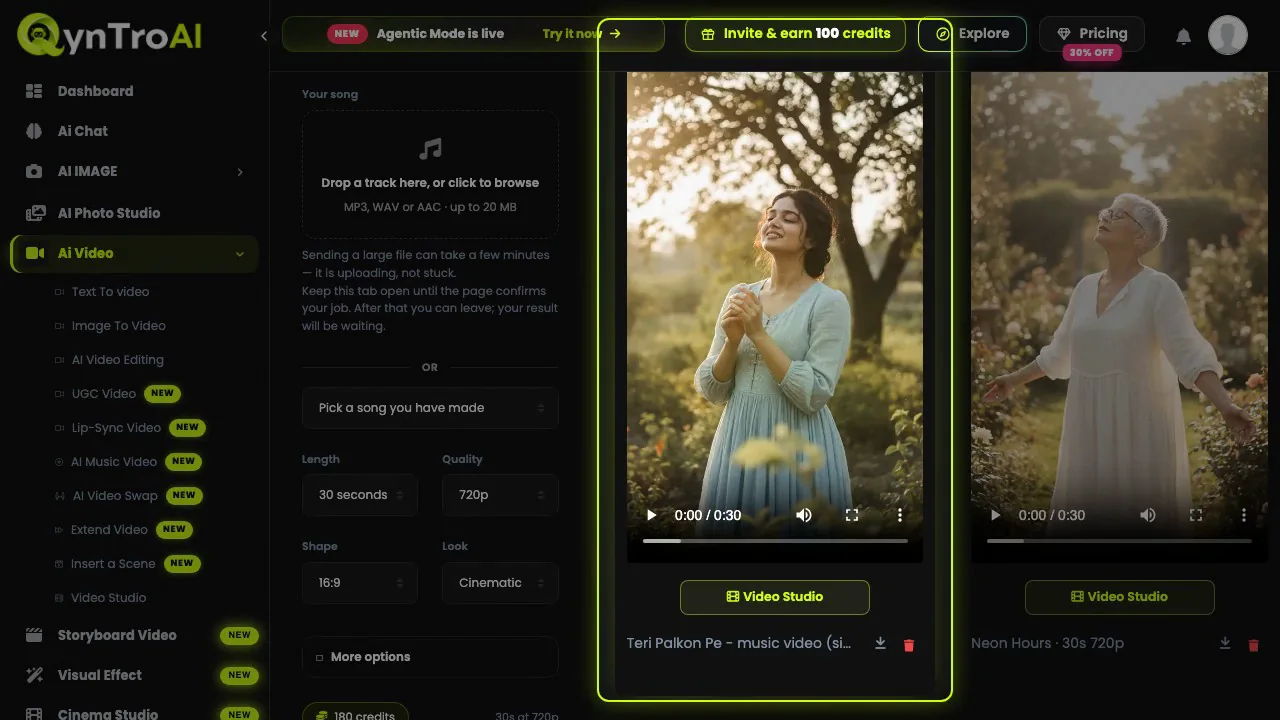
Every film along the top of the page was made with this tool, and so were the films in Story Video on Explore. Play one with the sound on before you start.
Step 2: Write the story
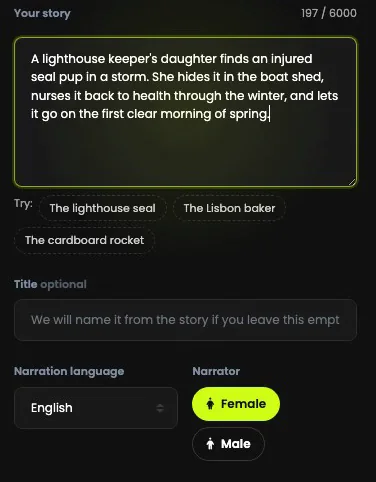
Type it into Your story: a single line is enough, or paste the whole thing, up to 6,000 characters. Say who it is about, where it happens and how it ends. The story is turned into scenes, the same characters are kept in every picture, and the narration is written for you.
"A lighthouse keeper's daughter finds an injured seal pup in a storm. She hides it in the boat shed, nurses it back to health through the winter, and lets it go on the first clear morning of spring."
Stuck? Three example stories sit under the box. The title is optional: leave it empty and the film is named from your story.
Step 3: Pick the language and the narrator
19 narration languages, Hindi among them, each with a female or a male narrator. The story is written in that language from the start, so it reads naturally rather than sounding translated.
A Hindi film is told by Hindi narrators, and its captions are written in Devanagari.
Step 4: Set the length, the shape and the quality
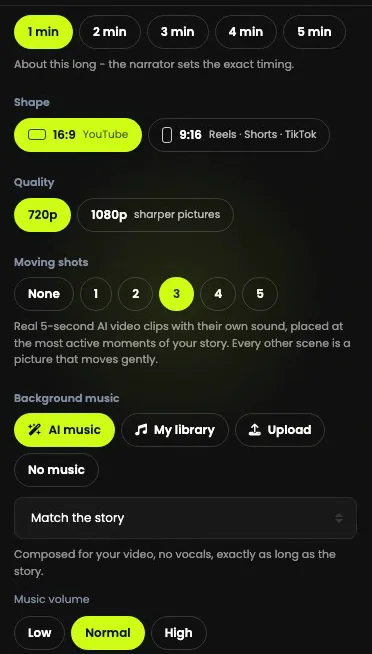
- Length: 1 to 5 minutes. The film is about that long; the narrator sets the exact timing.
- Shape: 16:9 for YouTube, or 9:16 for Reels, Shorts and TikTok. Choose it at the start: every picture is drawn in that shape.
- Quality: 720p, or 1080p for sharper pictures.
The price under the form changes with every choice you make.
Step 5: Add moving shots
Moving shots are what make it feel like a film: real 5-second AI video clips with their own sound, placed at the most active moments of your story. Every other scene is a picture that moves gently.
Choose none, or up to 5. They are the biggest part of the price, 70 media credits each at 720p and 140 media credits at 1080p, so start with one or two. A Comic has no moving shots.
Step 6: Choose the music
- AI music: composed for your film, with no vocals, exactly as long as the story, for 10 media credits a minute. Pick a mood, or let it match the story.
- My library: a track you made in AI Music. A short one loops under the whole film.
- Upload: your own MP3, WAV, M4A or AAC, up to 20 MB, if you have the rights to it.
- No music at all.
Whatever you choose dips while the narrator speaks, and you can set its volume low, normal or high.
Step 7: Let characters speak, and add captions
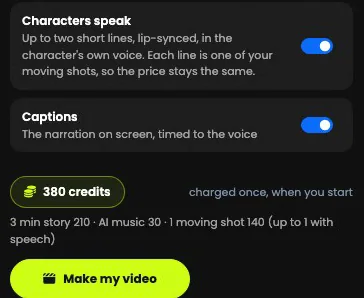
Characters speak gives them up to two short lines, lip-synced, in their own voices. Each line is one of your moving shots, so the price stays the same; choose at least one moving shot to switch it on. In a Comic, the lines go in speech bubbles at no extra cost.
Captions put the narration on screen, timed to the voice. Most people watch without sound, so leave them on.
Step 8: See the price, then make the film
The price is always on screen, and it is charged once, when you start: 60 media credits a minute at 720p or 70 media credits at 1080p, 10 media credits a minute for AI music, and 70 media credits for each moving shot (140 media credits at 1080p).
| The film | Quality | Credits |
|---|---|---|
| 1 minute, your own music or none, no moving shots | 720p | 60 |
| 1 minute, AI music, 1 moving shot | 720p | 140 |
| 3 minutes, AI music, 3 moving shots | 720p | 420 |
| 3 minutes, AI music, 3 moving shots | 1080p | 660 |
| 3 minutes as a Comic, AI music | 720p | 210 |
| 5 minutes, AI music, 5 moving shots | 1080p | 1,100 |
Press Make my video. A film takes several minutes: the scenes are planned, the pictures drawn with your characters kept the same, the clips rendered, the narration recorded and everything cut together. You can leave the page, and if anything fails your credits come back by themselves.
Step 9: Watch it, download it, and continue the story
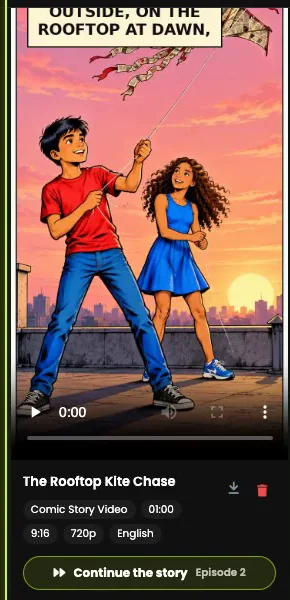
Your films are listed beside the form with their kind, length, shape, quality and language, ready to play and download.
Continue the story writes the next episode with the same characters and the same look, so one idea can become a series. You choose the length, the quality and the moving shots, and can say what happens next or leave it to the story.
Your first film
- Start small. A one-minute story with one moving shot shows you the look before you spend on five minutes.
- Choose the shape first. 9:16 for Reels and Shorts, 16:9 for YouTube: it is drawn into every picture.
- Say how it ends. A story with an ending makes a better film than a situation.
- Write the action in. Chases, storms and reveals are where the moving shots go.
- Spend where it shows. Fewer moving shots, 720p or a Comic bring the price down.