Step 1: Open Ebook Creator
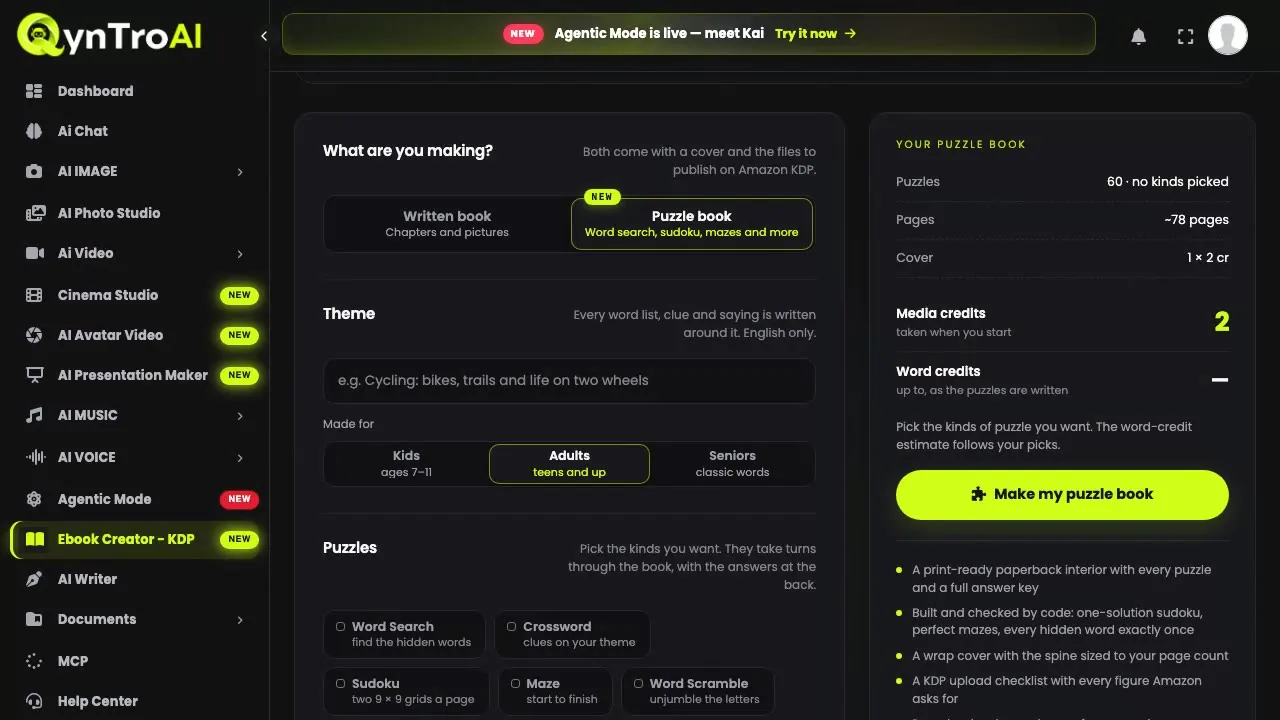
In your QynTro account, open Ebook Creator (KDP) from the sidebar. Or start on the public Ebook Creator page and set the book up before you sign in.
The four stages are printed at the top: outline, write, illustrate, typeset. They run in that order on QynTro's servers after you press one button, so everything you do is on this one screen, before that button.
Step 2: Describe the book: name the reader and the outcome
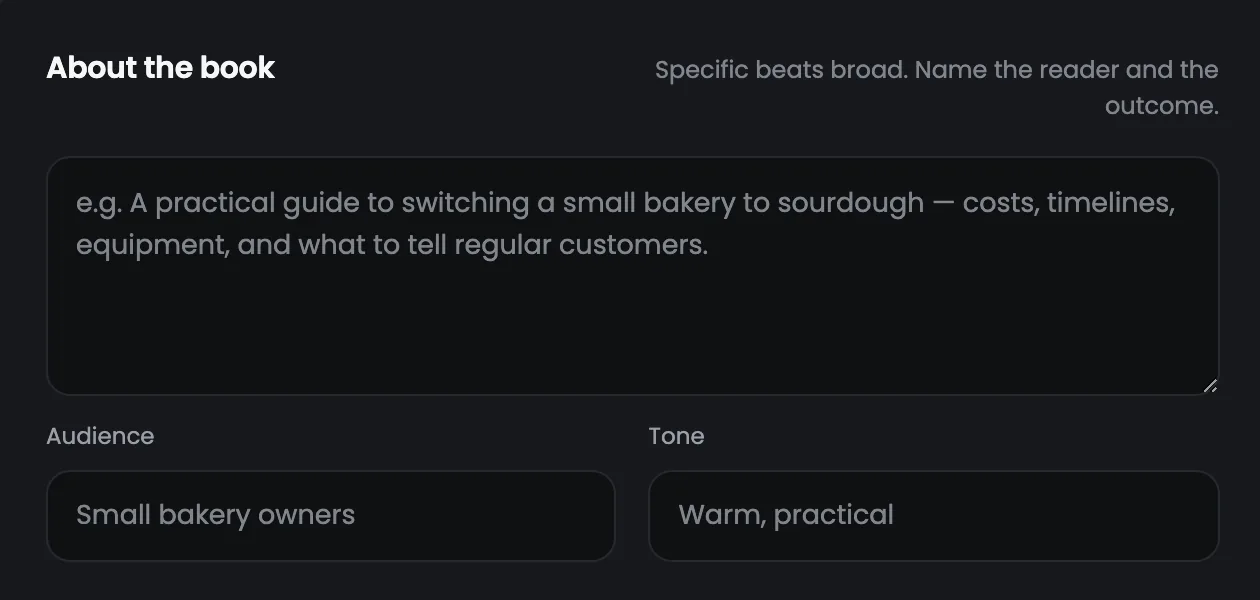
The brief decides whether the book is any good. "A book about sourdough" is too broad: the AI has to invent the reader and the point, and it will invent something generic. "A practical guide to switching a small bakery to sourdough: costs, timelines, equipment and what to tell regular customers" gives it a reader, a result and a backbone.
- Name the reader: "a small bakery owner" or "a first-year teacher", not "beginners".
- Name the outcome: what can they do on the last page that they could not on the first?
- List what it must cover: three or four specifics. They become the backbone of the chapter plan.
- Say what to leave out, so the book does not drift where you did not want it.
Three more fields steer the writing. Audience sets the assumed knowledge and the examples. Tone sets how it reads: two or three words, such as "warm, practical", is plenty. Author name is printed on the cover, so spell it the way you want it on Amazon.
Step 3: Choose how many chapters, and how long
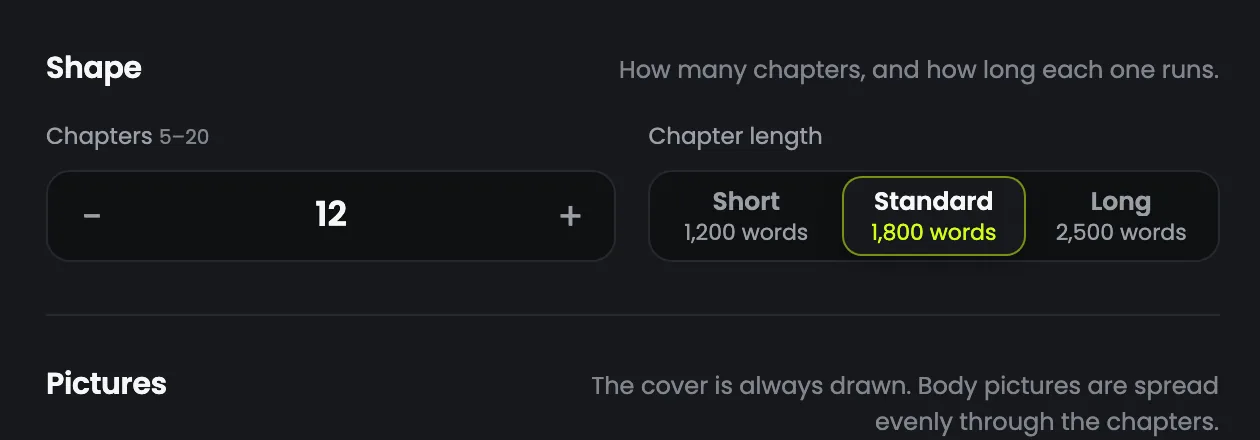
Chapters run from 5 to 20, and each one is Short (1,200 words), Standard (1,800) or Long (2,500). The panel on the right updates the words, the pages and the cost as you change them.
| What | Short | Standard | Long |
|---|---|---|---|
| 5 chapters | 6,000 words | 9,000 words | 12,500 words |
| 10 chapters | 12,000 words | 18,000 words | 25,000 words |
| 20 chapters | 24,000 words | 36,000 words | 50,000 words |
A printed page holds roughly 350 words, so five short chapters make about 17 pages and a 100-page paperback is about 35,000 words. More chapters usually beat longer ones: chapters are how a reader finds their way around the book.
Step 4: Pick the pictures
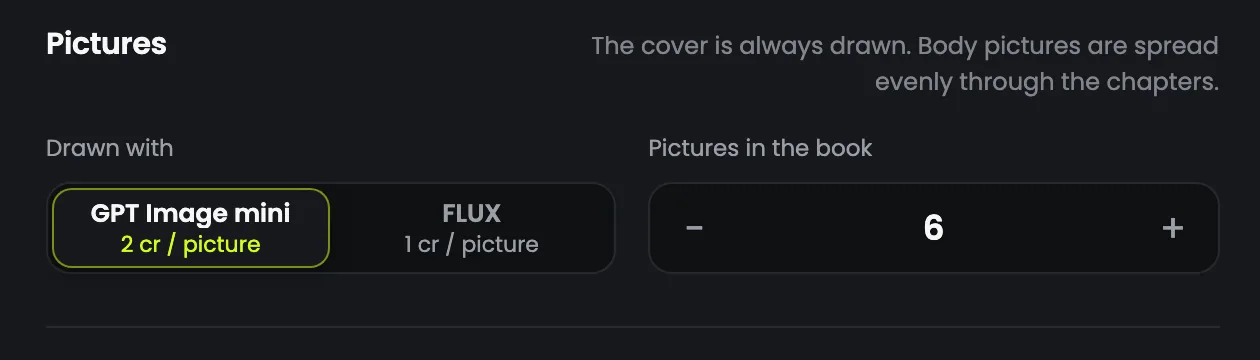
Two models draw the pictures, and they are not interchangeable. GPT Image mini is for pictures that must show a specific thing. FLUX is for mood and style, at the lower price.
- GPT Image mini costs 2 media credits a picture, FLUX 1 media credit.
- The cover is always drawn, on top of the pictures you ask for: set 6 and you pay for 7.
- Body pictures are spread evenly through the chapters and typeset in place.
- Pictures never contain readable words, so do not plan a picture of a sign or a poster.
Step 5: Set the paperback size and paper
These only affect the paperback, and they are hard to change later: the margins, the page count and the spine width all follow from them.
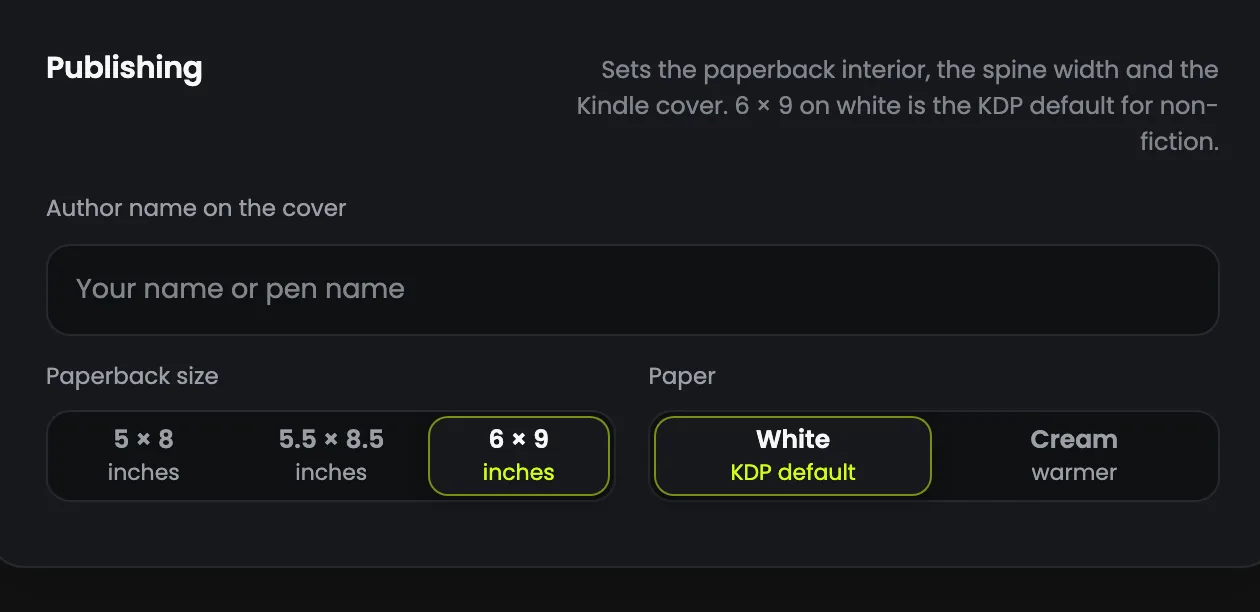
- 5 × 8 in for short, pocketable guides.
- 5.5 × 8.5 in, a safe middle for most how-to books.
- 6 × 9 in for business, technical and reference books, with the most room for figures.
- White paper has more contrast for pictures and diagrams; cream is easier on the eye over long text.
Unsure? Pick 6 × 9 on white, the KDP default for non-fiction; the tool says so too. The spine is measured, not guessed: the wrap cover is made after the book is written, from its real page count.
Step 6: Check the cost, then press Write my book
Read the Your book panel before you press anything. A book spends two balances: media credits pay for the pictures and are taken when you start, and word credits pay for the writing and come off as each chapter is written.
Word credits are the real limit: about 17 for every finished word, so a book of five short chapters needs about 119,000 word credits, plus 7 media credits on FLUX for six pictures and the cover.
If your balance is short, the panel says so. When it is right, press Write my book. A short book takes a few minutes, and you do not have to watch: close the page and come back.
Step 7: Download the PDF and the KDP bundle
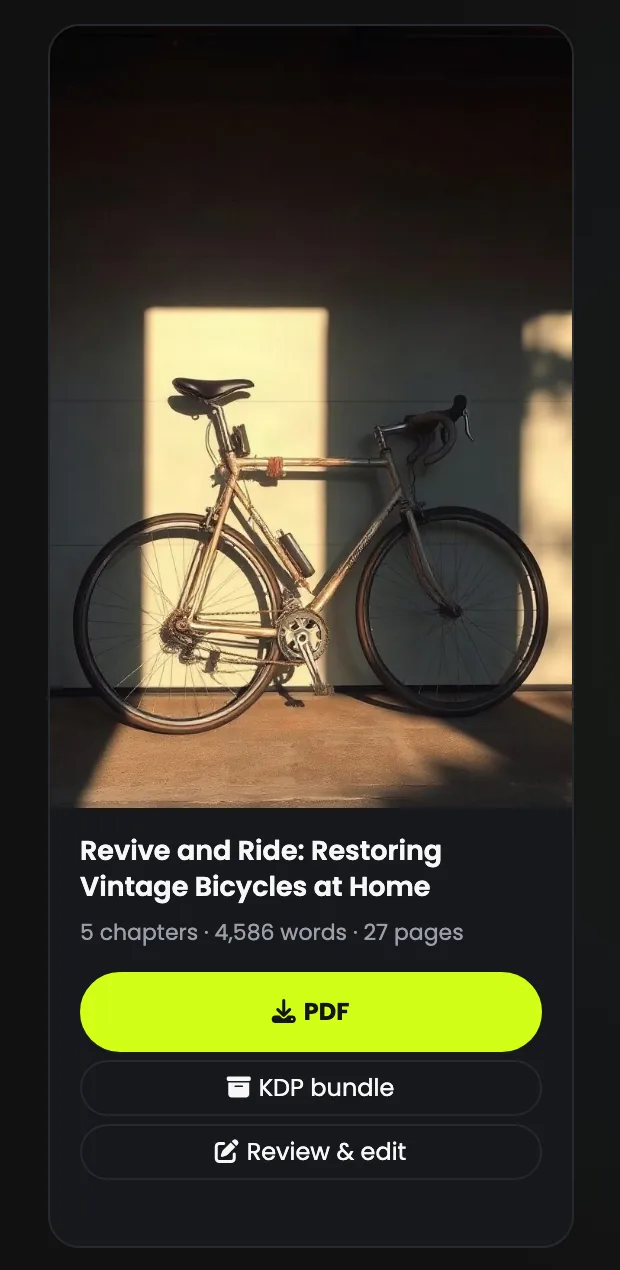
Every finished book is listed with its chapters, words and pages, and two downloads:
- PDF: a typeset book with a cover, a contents page and the pictures in place, ready to sell as it is, on your own site or as a lead magnet.
- KDP bundle: the Kindle EPUB with a clickable contents page, the 1600 × 2560 store cover, the paperback interior at your trim size with KDP's margins and real page numbers, the full-wrap paperback cover, and a checklist of every figure Amazon asks for.
Download them the day the book finishes: generated files are kept for a time that depends on your plan.
Step 8: Review and edit before you publish
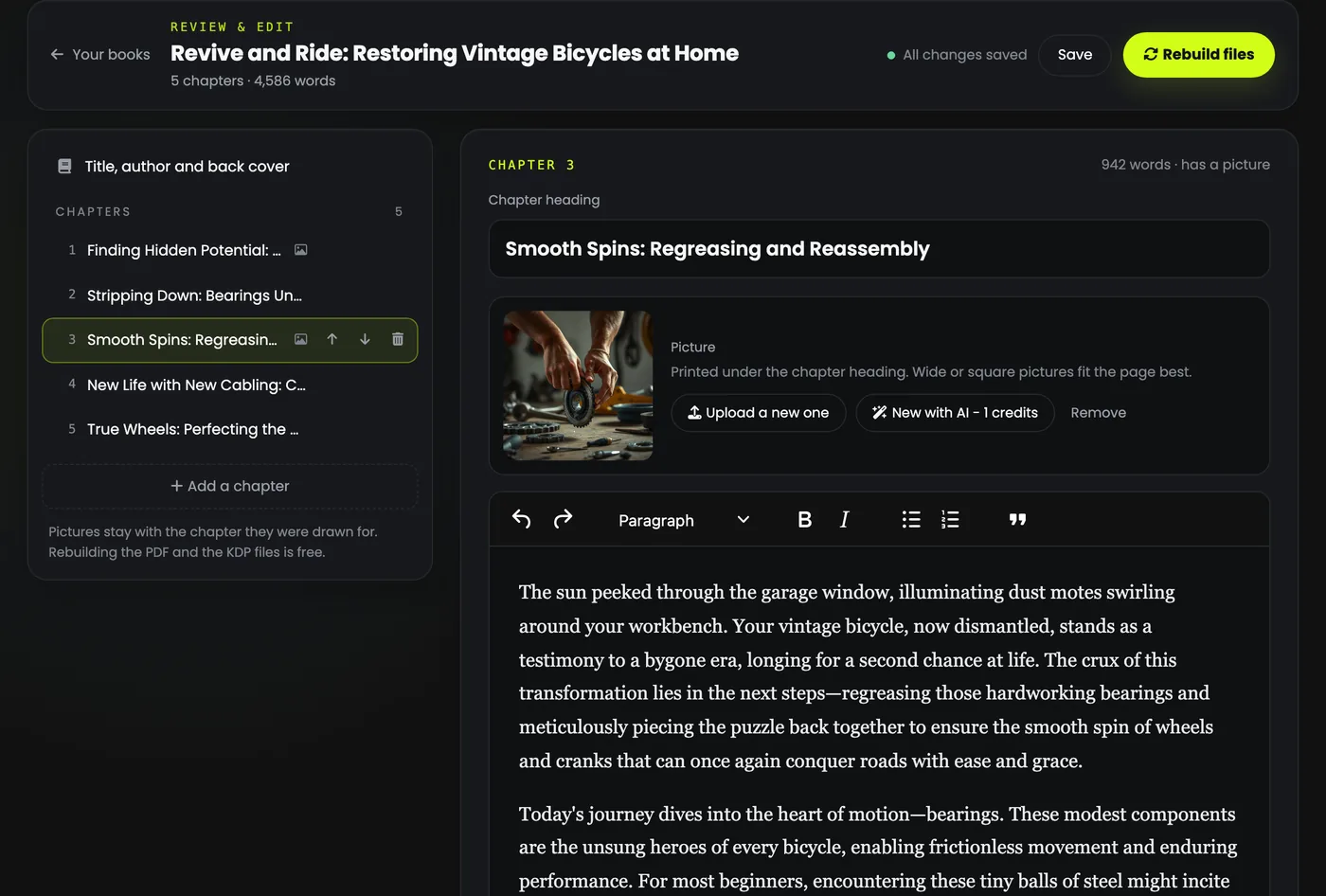
Every finished book has a Review & edit button. Fix a sentence, rewrite a chapter, reorder the book, change the title or the back-cover text, or swap a picture. Then press Rebuild files to typeset the PDF and the whole KDP bundle again.
- The editor has paragraphs, subheadings, bold, italics, lists and quotes: exactly what the book is typeset from. Pasted fonts, colours and links are cleaned out.
- Move a chapter up or down (its picture goes with it), delete one, or add your own.
- Upload your own pictures (JPG, PNG or WebP, up to 12 MB), or have a new one drawn at the book's picture price, charged only if it arrives.
- Your changes save themselves a few seconds after you stop typing.
Editing, uploading your own pictures and rebuilding the files cost no credits, as often as you like: after a reader spots a typo, or for a second edition.
Step 9: Publish it on Amazon KDP
Keep the KDP checklist from the bundle open while you fill in Amazon's forms: it has every figure they ask for, worked out for your book.
- Kindle eBook: upload the EPUB as the manuscript, and the store cover under "Upload a cover you already have".
- Paperback: a black and white interior on the paper you chose, your trim size and no bleed; then upload the interior PDF and the wrap cover.
- When KDP asks whether you used AI to create the text or the pictures, answer yes: Amazon asks every publisher to disclose AI-generated content.
Publishing makes you the publisher, so read the book before you sell it.
Tips for your first book
- Start small. Five short chapters on FLUX make a complete, sellable book of about 17 pages for a fraction of the credits, and show you what the tool writes before you commit to a big one.
- Make the draft yours. Read it once in the editor and add your own examples in your own voice, then rebuild. The draft is the machine's; the edit is what makes it yours.
- Choose the trim size first. Changing it later means making the book again.