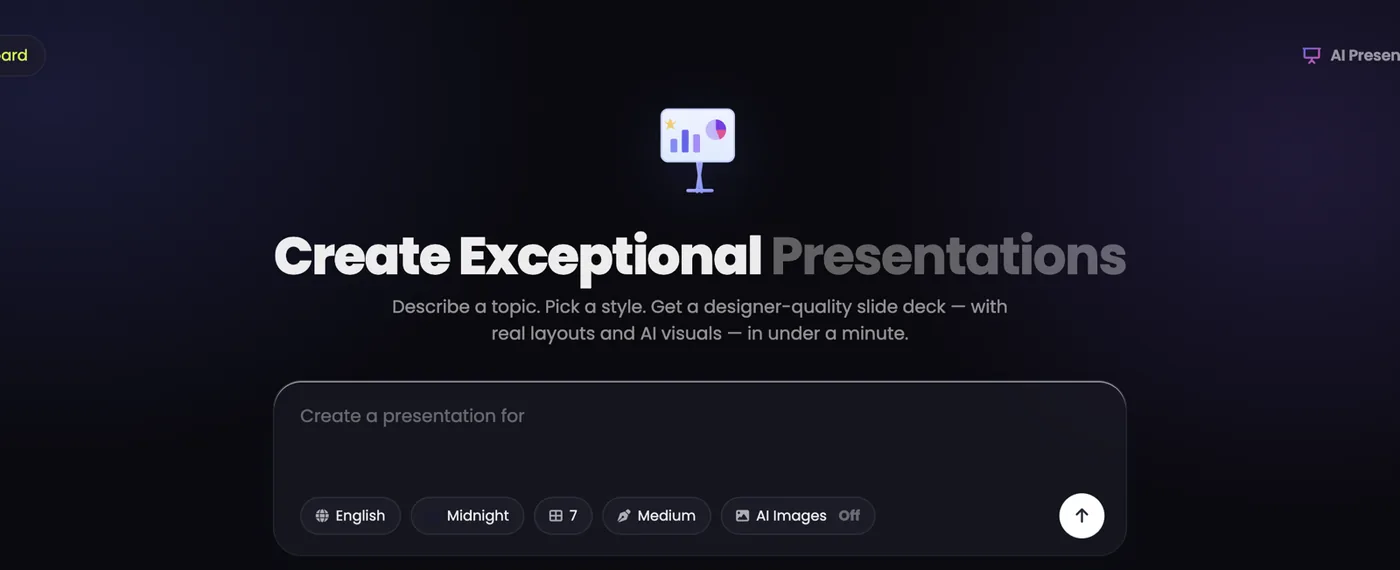
Step 1: Describe the deck in a sentence or two
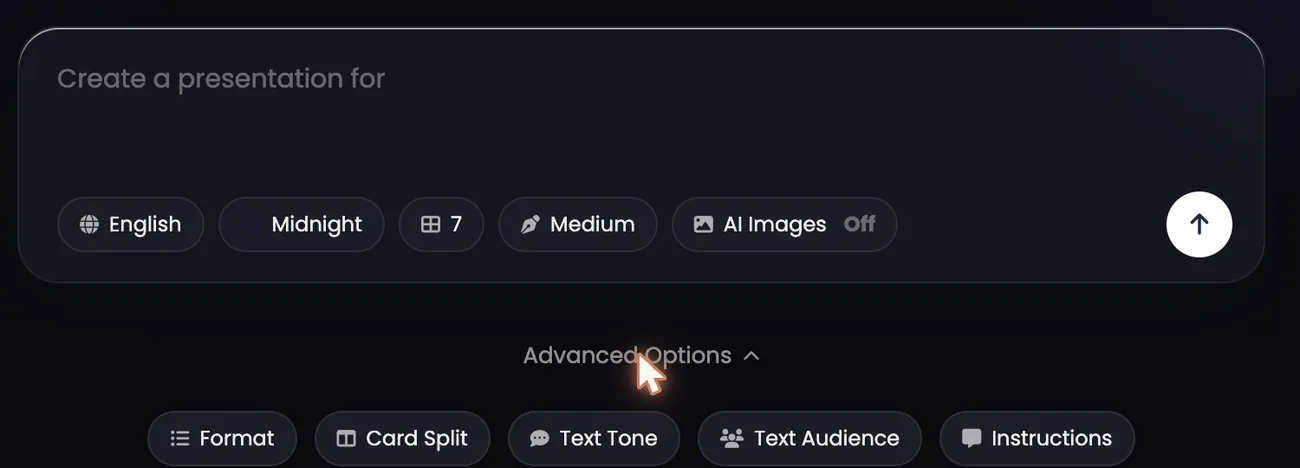
The box starts "Create a presentation for…", so finish the sentence. Say who the audience is, list the sections you want in order, and name the outcome: to persuade, to teach or to report.
"An investor pitch for a vitamin C serum brand: the problem, our product, the market size, our traction, the team, and the raise."
One word, such as "skincare", gets you a generic deck; a sentence with sections gets you those sections.
Step 2: Pick a theme
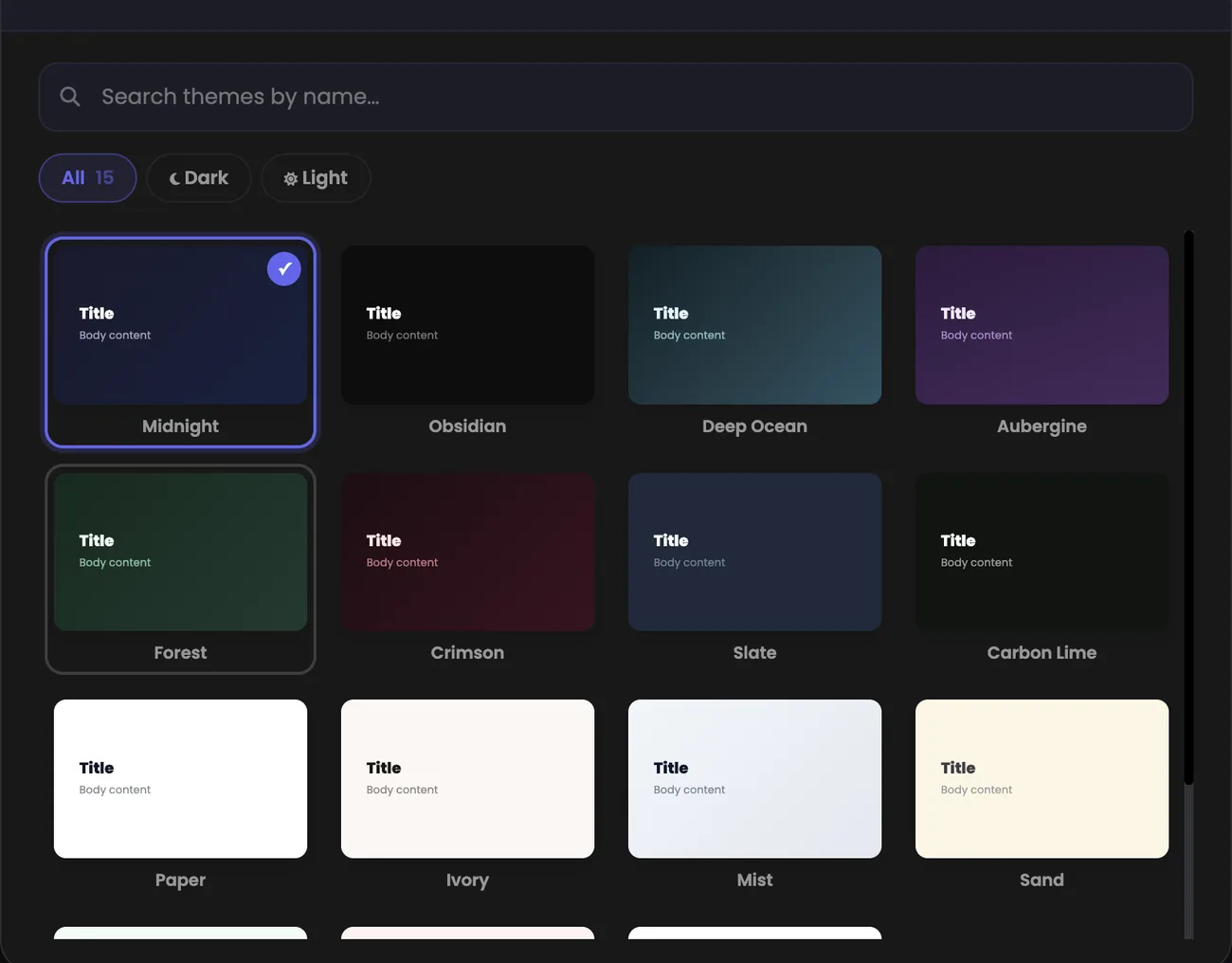
The theme decides the whole look. There are 15, each previewed before you choose, with dark and light filters.
- Presenting on a big screen in a dim room: a dark theme, such as Midnight, Obsidian or Deep Ocean.
- A PDF people read on a laptop, or handouts you print: a light one, such as Paper, Ivory or Mist.
- Brand and lifestyle work: more colour, such as Aubergine, Crimson, Forest or Sand.
Step 3: Set the slides, the text and the language
- Slides: 1 to 30. Seven to ten suit a pitch, twelve to fifteen a training session, five a quick update; more slides on a small topic only spreads it thin.
- Text on each slide, from brief to extensive: brief if you will speak over it, detailed if people will read it without you.
- Language: pick it before you generate. The same topic and theme can be built again in another language.
Step 4: Turn AI Images on
AI Images starts off. Switch it on, and the slides that need one get an original picture made to match their content: the biggest difference on this screen between plain slides and a designed deck.
Pictures cost 8 media credits each, charged only for the slides that get one, on top of 2 media credits a slide. A 7-slide deck costs 14 media credits without pictures, and up to 70 media credits with them.
Step 5: Use Advanced Options when the default is not quite yours
- Format: the overall shape of the deck.
- Card split: how much lands on each slide.
- Text tone: formal, conversational or persuasive.
- Text audience: who is being addressed. Investors get market and traction; customers get benefits.
- Instructions: anything else, in your own words.
Step 6: Generate, preview and download
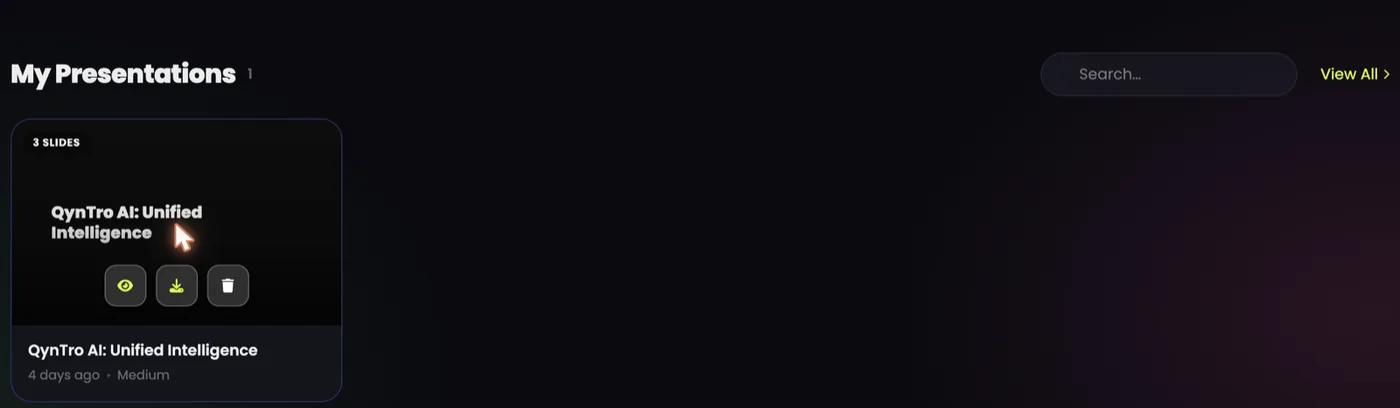
Press the arrow. A deck usually arrives in under a minute and is saved under My Presentations with its slide count, title and date; hover it to preview, download or delete it. If a deck cannot be made, it costs nothing.
The download is a real PowerPoint (.pptx) file: open it in PowerPoint, Keynote or Google Slides and edit every slide, word and picture. Treat it as a strong first draft, and polish the two or three slides that matter most.
Tips for a better deck
- Name the audience and the sections in the topic: it is the fastest way to control the structure.
- Choose the theme for the room: dark for a projector, light for a PDF or print.
- Keep the text short when you present live: slides full of text compete with you.