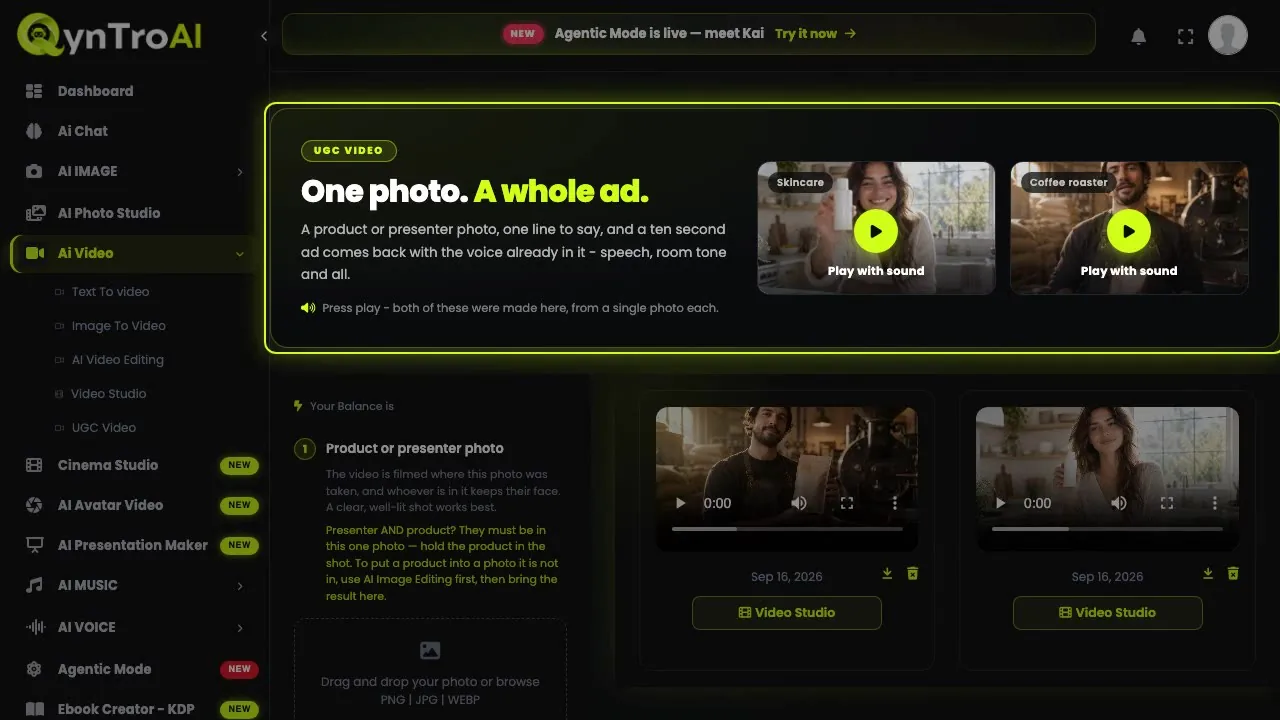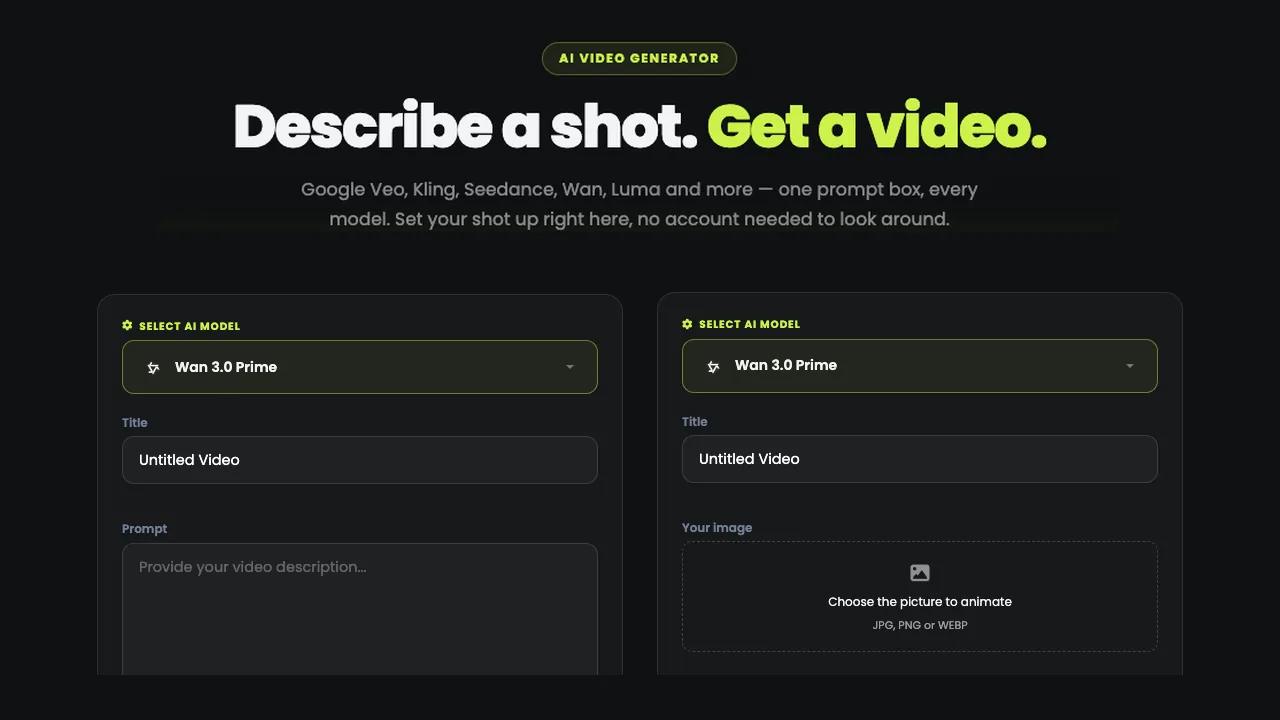
Step 1: Open Virtual Try-On
Sign in and open AI IMAGE › Virtual Try-On in the sidebar. It runs on paid plans and credit packs: any first purchase unlocks it.
Step 2: Pick a model
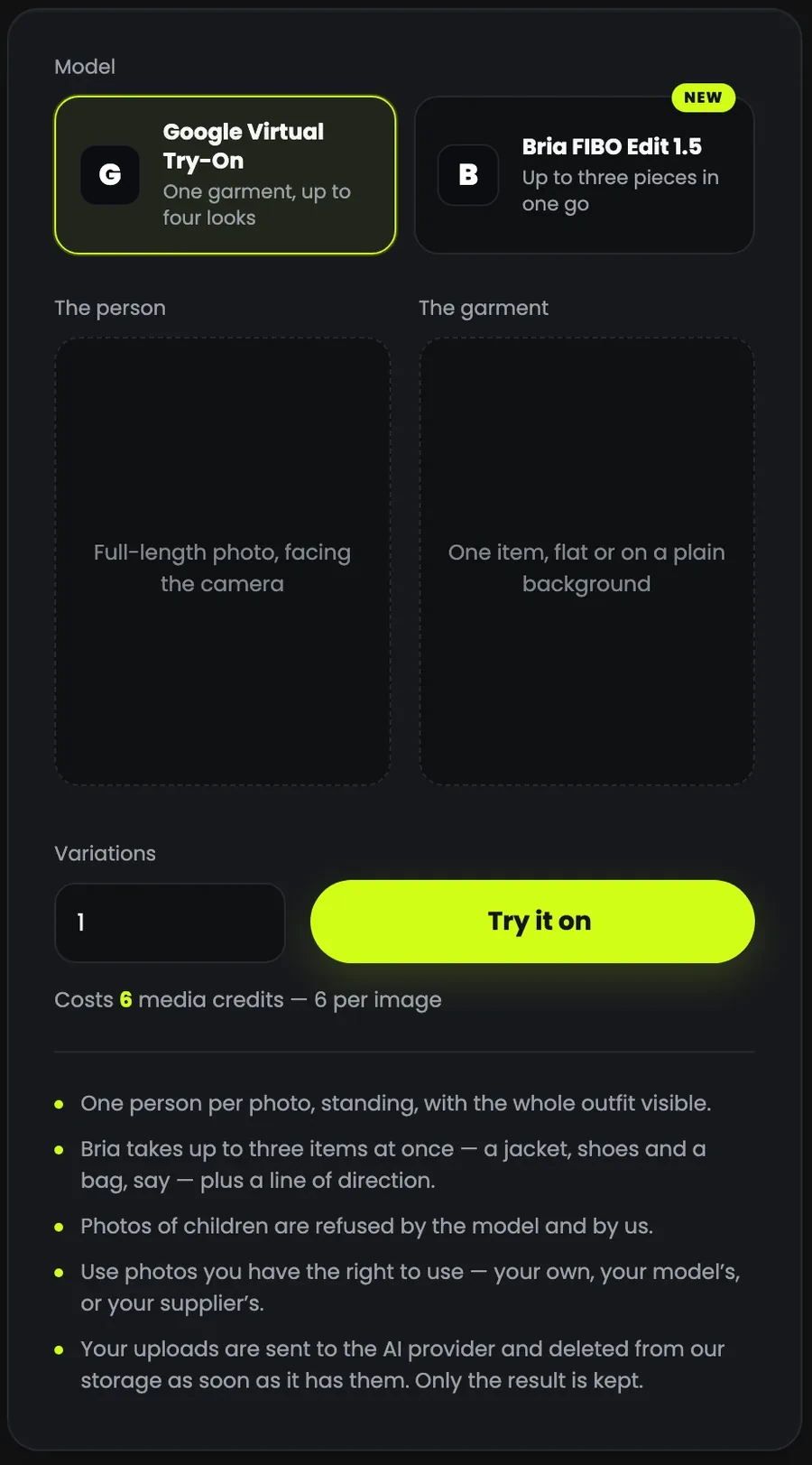
- Google Virtual Try-On, the default: one garment, and up to four looks at once with Variations.
- Bria FIBO Edit 1.5: up to three pieces in one go, say a jacket, shoes and a bag, plus an optional written direction such as "Shirt tucked in, sleeves rolled to the elbow". It makes one image.
Step 3: Add the person
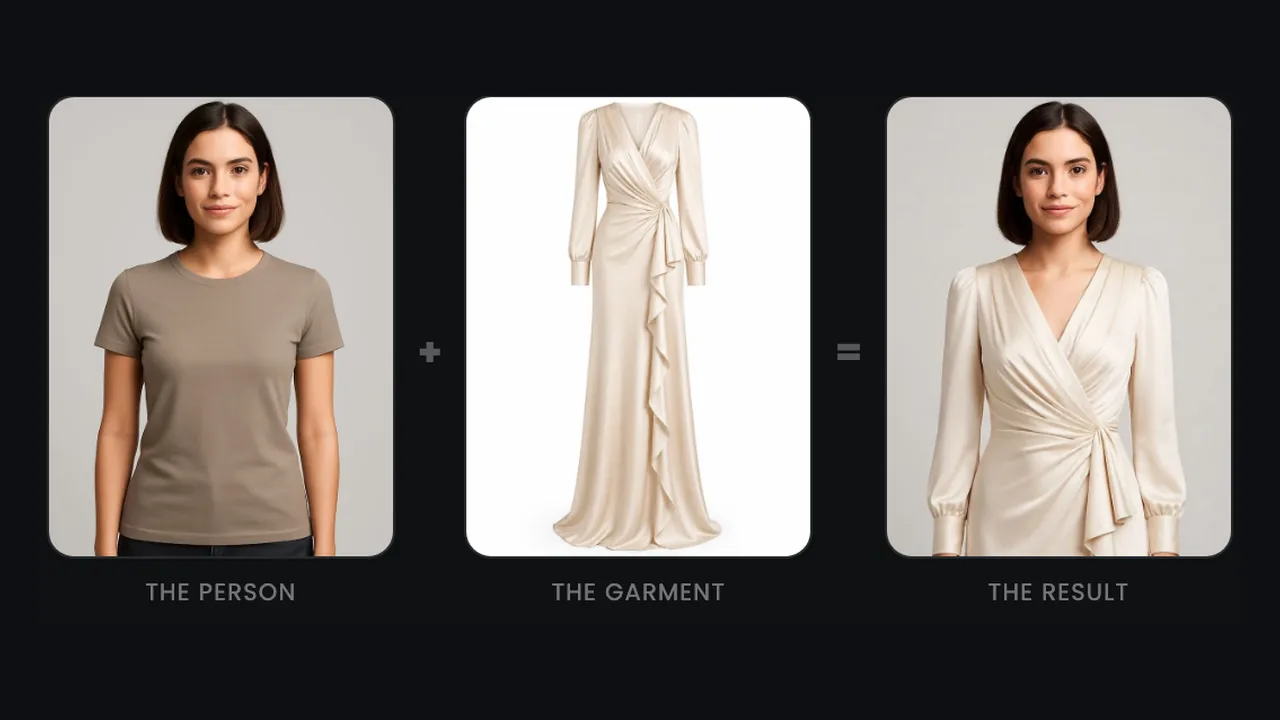
A full-length photo of one person facing the camera, standing, with the whole outfit in frame: a model, a mannequin, or you. JPG, PNG or WEBP, up to 12 MB.
Use photos you have the right to use: your own, your model's, or your supplier's. Photos of children are refused.
Step 4: Add the garment
The garment on its own: flat, on a hanger, or on a plain background. A packshot works best, the piece with no one wearing it. With Bria you can add a second and a third item.
Step 5: Check the cost, then try it on
The line under the button shows the cost before you press it: 6 media credits per image with Google, times the Variations you choose; 4 media credits with Bria. Press Try it on. If the AI cannot make the image, nothing is charged.
The result appears in Your try-ons, where you can download the PNG or delete it.
Photos that give a good fit
- One person, head to toe. Standing, facing the camera, with nothing covering the outfit.
- A plain, well-lit garment photo. The whole piece, unfolded, with no one wearing it.
- Even light on both. Soft daylight or a studio light, and a plain background.
- Match the shot. A full-length dress needs a full-length photo of the person.
Your uploaded photos are sent to the AI provider and deleted from our storage as soon as it has them; only the result is kept.