Step 1: Describe the picture
Open the AI Image Generator and type what you want to see in the prompt box, the parts separated by commas. You can set everything up without an account and sign in when you are ready to generate.
Describe it like a photographer, not like a search engine. Work through five things: the subject, its detail (material, colour, condition), the setting, the light and the framing.
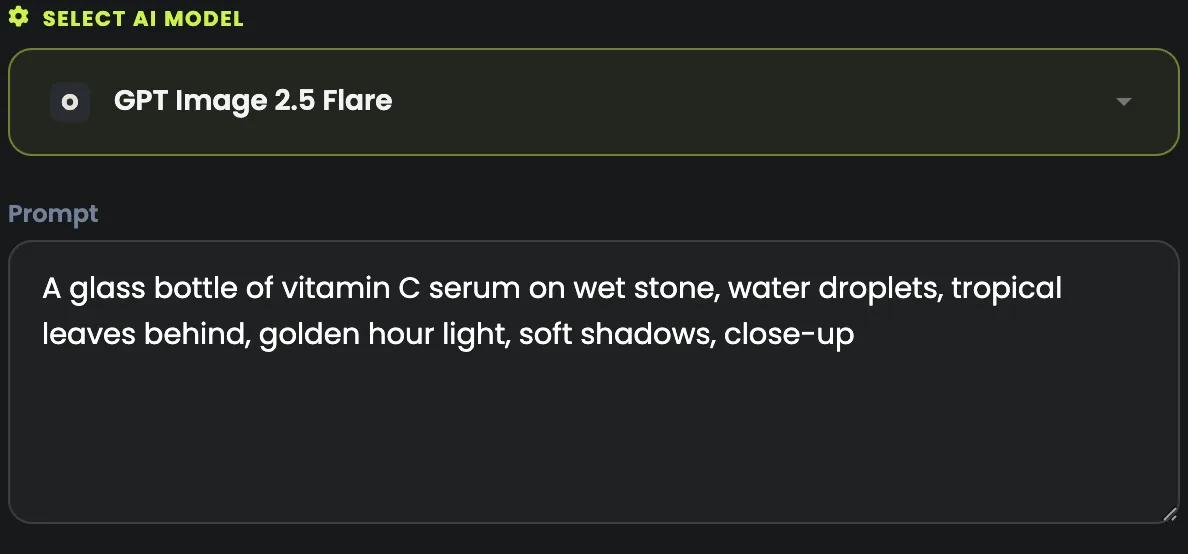
A glass bottle of vitamin C serum on wet stone, water droplets, tropical leaves behind, golden hour light, soft shadows, close-up.
Say what you want rather than what you do not: "a clean, empty background" works better than "no clutter".
Step 2: Pick a model
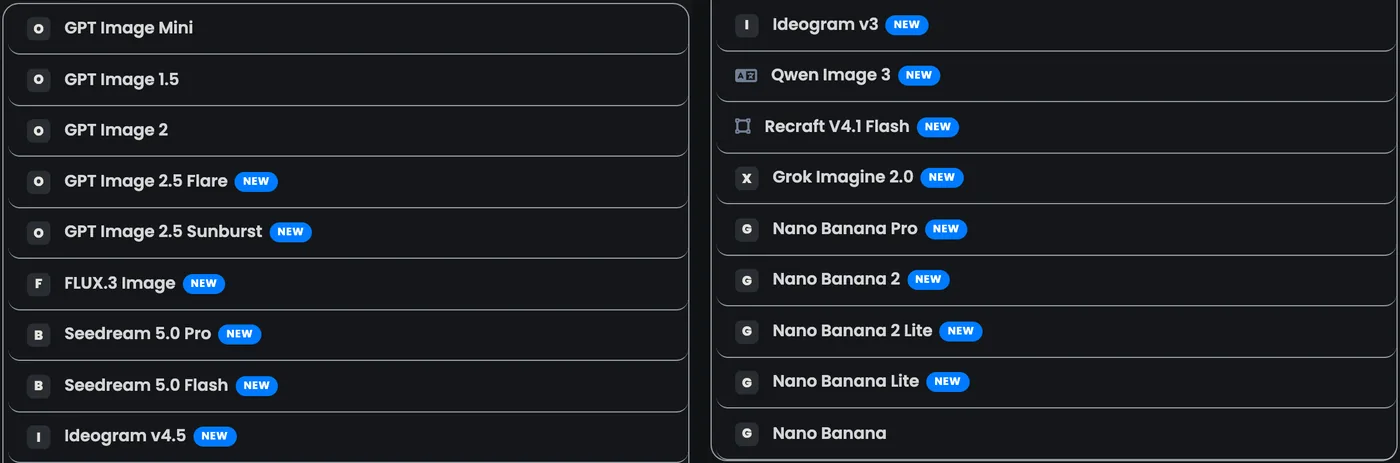
Open Select AI model. Once you are signed in, every model shows its price beside its name; the same prompt gives a genuinely different picture on each one.
| Model | Made by | Good for | Credits a picture |
|---|---|---|---|
| Recraft V4.1 Flash | Recraft | Quick, low-cost drafts | 1 |
| GPT Image Mini | OpenAI | Cheapest of the GPT Image family | 2 |
| GPT Image 2.5 Flare | OpenAI | OpenAI's newest and fastest | 2 |
| GPT Image 2.5 Sunburst | OpenAI | Like Flare, with finer detail | 2 |
| Seedream 5.0 Flash | ByteDance | Seedream, quick and cheap | 3 |
| FLUX.3 Image | Black Forest Labs | Black Forest Labs' newest | 4 |
| Qwen Image 3 | Alibaba | Complex text, close to the prompt | 4 |
| Nano Banana 2 Lite | A lighter Nano Banana 2 | 4 | |
| Nano Banana Lite | The lightest Nano Banana | 4 | |
| Nano Banana | The original Nano Banana | 4 | |
| Ideogram v4.5 | Ideogram | Ideogram's newest, sharp text | 5 |
| Ideogram v3 | Ideogram | Built for text and typography | 5 |
| Grok Imagine 2.0 | xAI | xAI's image model | 5 |
| Seedream 5.0 Pro | ByteDance | ByteDance's photo model | 6 |
| Nano Banana 2 | Google's newest Flash model | 7 | |
| GPT Image 1.5 | OpenAI | The previous GPT Image | 8 |
| GPT Image 2 | OpenAI | Strongest at text inside images | 8 |
| Nano Banana Pro | Google's most detailed | 12 |
- Words in the picture (a sign, a label, a poster): GPT Image 2, Ideogram and Qwen Image 3 are built for readable text.
- Photo-real shots: try Nano Banana Pro, Seedream 5.0 Pro and FLUX.3 Image.
- Quick drafts: start on the cheapest model until the composition is right.
Not sure? The image model comparison shows the same prompt made on every model, side by side, with what each picture costs.
Step 3: Choose how many, and the shape
Number of images makes up to 10 pictures from one prompt, each a little different: the fastest way to find the composition you want. Each picture is charged, so 4 pictures on a 3-credit model cost 12 credits.
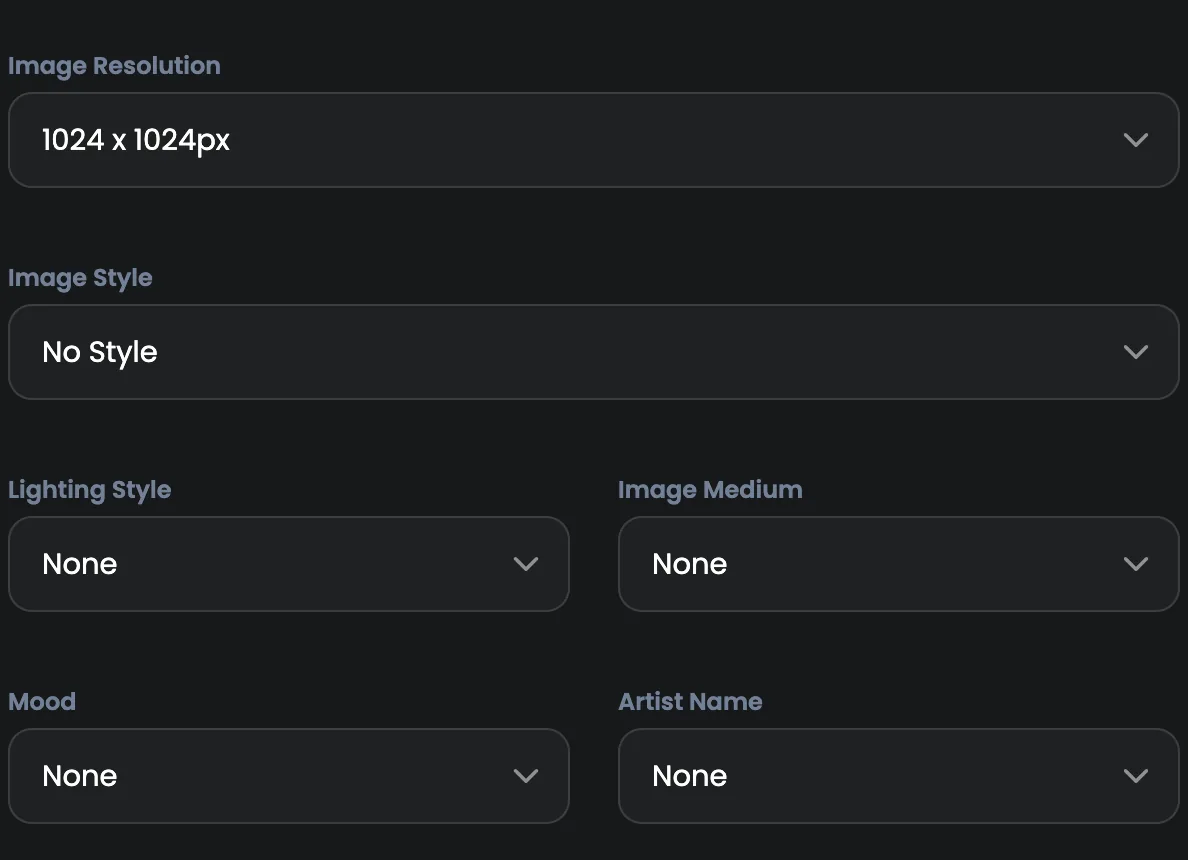
Image resolution sets the size and the shape. Choose it before you generate: cropping a square into a banner afterwards throws away half the picture.
- Square for posts, product tiles and avatars.
- Portrait for Reels, Stories and phone wallpapers.
- Landscape for website banners, thumbnails and slides.
The shapes on offer depend on the model: GPT Image makes square, portrait and landscape pictures; most others add 4:3 and 16:9 versions of each.
Step 4: Set the look, one menu at a time
Below the shape sit menus for Image style, Lighting style, Image medium and Mood, all set to None. They are the difference between an AI picture and one that looks art-directed, with no prompt jargon needed.
- Lighting is the fastest way to change a shot: golden hour, studio, neon, dramatic.
- Medium turns a photo into an oil painting, a watercolour or a pencil drawing.
- Mood sets the feel: warm, moody, energetic or calm.
Change one menu at a time. If you set five and the picture is wrong, you will not know which one did it; two well-chosen settings usually beat five.
Step 5: Generate, then download
Press Generate. Most pictures arrive within a few seconds to a minute, and each is saved to your library below the prompt box, newest first.
Open a picture to see it full size and download it at full resolution. Everything you make is also under Documents, in All images. Download what you want to keep: generated files are kept for a time that depends on your plan.
Spend less, get better pictures
- Draft cheap, finish premium. Test the prompt on a low-cost model until the composition is right, then run it once on the model you like best.
- Explore with four, finish with one. Four pictures on a cheap model, then one on a premium model.
- Change one thing at a time between runs, so you know what made the difference.
- Start from a real result. Explore shows pictures made on QynTro with their full prompts: copy one and change a detail.